
Even though Chrome for Android does not support this feature at the moment, there are other apps in the Google Play Store that do. Personally, I use UC Browser to download any kind of audio file. But the one major drawback of downloading music online from random websites it that they often do not have very clear information associated with them. For example, the name will not be the same (the website name will be added to it) or the album art will be some kind of random picture. Stuff like these totally spoils the experience. But thankfully, there is a way to easily correct these cluttery MP3 files and make them beautiful. #MakeMP3GreatAgain!
Hold on, what is an MP3 Tag?
A little knowledge about what we are going to do is always good. First things first, the technical (and correct) name of an MP3 tag is ‘ID3 Tag’. ID3 tag data contained within MP3 files is sometimes referred to as metadata. While this sounds a bit scary and complex, it’s really not. Metadata is just data describing other data. In this case, the ID3 tag data within an MP3 is the metadata, and it describes the audio data of the MP3, e.g. the track title, artist name etc..Necessary Downloads:
To achieve what we are looking for, we are going to make use of a nifty little app called ‘Automatic Tag Editor’. Get it from the Google Play Store by clicking below:

How to Edit MP3 Tag and Album Art on Android:
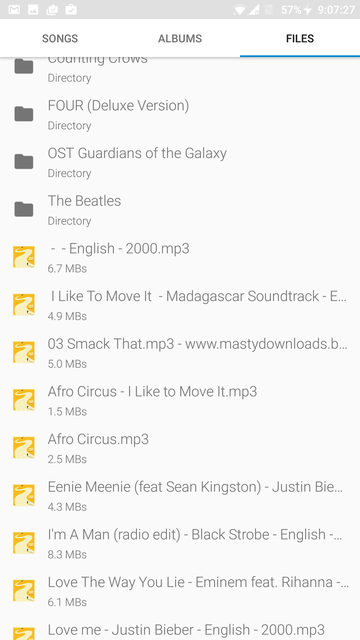
Assuming that you have successfully installed the app from Google Play Store, follow the below steps to beautify your cluttered MP3 files by editing their MP3 (or ID3) tags:- Open the app. All the MP3 files in
your device will be listed here. There will be three categories – Songs,
Albums, and Files; just like in a music player. You can choose the one
you want.
- For the purpose of this tutorial, I am going to choose an MP3 file listed under the ‘Files’ category. When you go to the ‘Files’ category, it will first show you the ‘Internal Storage’. Tap on it to open it and navigate to the MP3 file you want to edit.
- I have chosen an MP3 file named ‘I Like To Move It’ (from Madagascar, yes) and as you can clearly see the album art is completely is not the right one. As soon as you choose the file, the app will start looking for appropriate information on the internet.
- The results will then be neatly displayed in cards style. The most relevant match will be on the top. You can simply tap on it (or any other suggestions below it) and the app will automatically update the album art and other information that it collected from the web. Don’t forget to tap on the ‘tick’ mark in the top right corner to make sure the changes are saved successfully.
Got any other easy tricks for editing the MP3 ID3 tags? What’s your favorite app to edit them? Let us know in the comments below!

No comments:
Post a Comment
Is this post helpful?
Your comment(s) are highly appreciated to this post. Be the first to comment and make sure you also share to your friends and families about this post, for them to also benefit from it.
Share to all social networks like Facebook, Twitter and others social network you may know.
Are you finding it difficult to drop a comment here? Kindly click here and learn how to comment on Naijatechviral.com
Send FOLLOW NAIJATECHVIRAL To 40404
To get Free Update From This Blog